SketchUp extensions from the workshop
From design to CNC,
no detours.
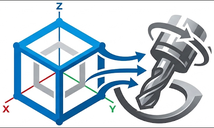
Made by furniture workshop De Makers in Edam (NL), for the work we do ourselves every day. Draw cabinets, name parts, place drill holes and export straight to the machine.
- 41 tools
- 3 categories
- 6 languages
Three toolboxes
Buy one category or everything in a bundle.
CNC
From SketchUp model straight to .tcn for tpaCAD and the Format4 H200. Drill holes, rabbets, grooves and contours are clicked right onto the panel.
TCN Export, Dowel hole, Shelf pin rows, Cabinet connection 8 mm, Rabbet …
The CNC tools are only available as one complete package.
The CNC tools currently only work with Format4 CNC machines (tpaCAD, .tcn). A different brand?
14 toolsCabinet making
A complete cabinet in a few clicks: carcass, shelves, drawers and fronts, neatly named and ready for the cut list.
Carcass, Cabinet from block, Shelves and dividers, Drawers, Fronts …
17 toolsSolid tools
Smart operations on panels and solids: change thickness, round corners, taper push/pull and tilt on an edge.
Block, Split block, Distribute and align, Quick Panel Component, Panel thickness …
10 toolsAll tools
Click a tool for the video and all details.
 TCN Export
Export panels as .tcn for tpaCAD, one panel or a whole cabinet at once.
View Dowel hole
Click a panel face and the hole is there, any diameter and depth.
View Shelf pin rows
Click a shelf and both side panels get a row of shelf pin holes.
View Cabinet connection 8 mm
Edge bores in the rail plus the matching holes in the side panel, in one click.
View Rabbet
A rabbet along the full length of an edge, or along an angled edge.
View Groove
Click the path of a groove, pick the cutter and depth.
View Bevelled face
Mill a bevelled panel face as small steps with a flat cutter, because the CNC cannot tilt.
View Contour milling
Point at an arc and the whole outline is followed and milled as true arcs.
View Circle
Centre, radius, done: a round cut-out or hole for the CNC.
View Handle holes
Holes for a handle or knob through the front, on the 32 mm system.
View Back panel holes
Small through holes that fix the back panel, in the middle of the rabbet and at fixed shelves.
View Hinges
Hinge cup and side holes in the front plus the mounting plate holes in the side panel, for every hinge type.
View Cabinet CNC-ready
Click a cabinet and all dowels, shelf pin holes and hinges are in place.
ViewCNC tool setup
All your cutters in one list: name, diameter, cutter number and the default cutter per operation.
View Carcass
Draw a rectangle, pull it up and the complete cabinet carcass is there.
View Cabinet from block
Point at a solid block and it becomes a cabinet with exactly the same outer sizes.
View Cabinet from slanted block
Point at a block with a slanted side and it becomes a cabinet that follows the slanted shape.
View
 Shelves and dividers
Divide shelves and dividers over the free space, evenly or with fixed compartment sizes like "300 # #".
View Edit shelf
Click a shelf or divider and set its position and how deep it sits at the front and back.
View Drawers
Blum LEGRABOX or self-built drawers on MOVENTO, correctly sized in one click.
View Fronts
Door and drawer fronts on one cabinet or across several cabinets at once, with gaps and sizes like "300 # #".
View Handle profile
s behind the fronts: aluminium C or L profile or wood, with notches in the sides.
View Plinth legs
Adjustable legs under a cabinet in one click: underneath, cabinet raised, or within the outer size.
View Plinth
 boards under the selected cabinets, with thickness, height and corners in a dialog.
View Countertop
A countertop on the selected cabinets, with the thickness and overhang you choose.
View Open / close
Click a door, flap or drawer to open it and see at once if it hits anything.
View Panel groove
A groove in a panel, for example for an LED strip. Distance, width, depth and length adjustable.
View Name parts
Recognises the parts of a cabinet, names them and turns them into components.
View Cabinet settings
One window for part naming and the default sizes of all cabinet tools.
View Edit cabinet
Click a cabinet and change width, depth, height or construction: the carcass is rebuilt.
View Swap corner
Choose per corner which panel runs through: side on the bottom or bottom between the sides.
View Block
Draw a solid block: line, rectangle, pull up. To lay out a space or a cabinet.
View Split block
Cut a block into separate blocks: click the spot or type sizes like "600 # #" or "/4".
View Distribute and align
Align, centre or evenly distribute the selected objects along X, Y or Z in one click.
View Quick Panel Component
Click length and width: a fixed-thickness panel, straight away as a component.
View Panel thickness
Turn an 18 mm panel into 19 mm in one click, grooves and rabbets stay correct.
View
 Corner radius
Round or chamfer corners and edges: one corner, all corners of a panel at once, a long edge or all around a face.
View Quarter-round panel
A curved quarter-circle panel: start point, end point, height and thickness.
View Push/Pull Taper
Push/Pull that follows sloped side faces, the way you know it from Vectorworks.
View Rotate on edge
Tilt a face or rotate an object around an edge you pick.
View Miter
Two overlapping panels in a corner: one click and they meet in a miter.
ViewThe CNC tools currently only work with Format4 CNC machines (tpaCAD, .tcn). A different brand? Contact De Makers (info@drawtocnc.com)
Pricing
Pay once, license per user. Checkout through Lemon Squeezy with card, PayPal and more.
Complete bundle
All CNC, cabinet and solid tools.
- 41 tools
- Use forever, 1 year of updates
- NL · DE · EN · FR · IT · ES
CNC complete
All-inclusive: every CNC tool, the TCN export and the tool setup.
- 14 tools
- Use forever, 1 year of updates
- NL · DE · EN · FR · IT · ES
The CNC tools currently only work with Format4 CNC machines (tpaCAD, .tcn). A different brand? Contact De Makers (info@drawtocnc.com)
Buy Free trialCabinet making
Carcass, shelves, drawers, fronts and naming.
- 17 tools
- Use forever, 1 year of updates
- NL · DE · EN · FR · IT · ES
Solid tools
Panel thickness, corner radius, taper and more.
- 10 tools
- Use forever, 1 year of updates
- NL · DE · EN · FR · IT · ES
The CNC tools are only available as one complete package.
Try it free for 14 days
Get a package for free (just your email address) and use every tool for 14 days, no key needed. You get the download link right away and by email. Install: SketchUp > Extensions > Extension Manager > Install Extension. Like it? Buy a license and enter your key under Extensions > drawtocnc > License and language.
version 1.7.0 · SketchUp 2026, Windows
New in version 1.7.0
13 November 2026. Free for everyone with a license or trial.
- New: Open / close (Cabinet making). Click a door, flap or drawer to open it and see at once if it hits a wall, a handle or the next cabinet.
- New: Bevelled face (CNC). Mills a bevelled panel edge as steps with a flat cutter, because the CNC cannot tilt.
- Carcass: split top, two strips instead of a solid top. Cabinet CNC-ready and Cabinet connection place the dowels and screw holes for the strips.
- Fronts: mixed fronts in one compartment, for example a sink cabinet with a 150 drawer above 2 doors: type 150 #(# #).
- New: inches. All tools now take and show sizes in the units of your model (inches, feet, cm or mm). You can always type a metric size with its unit, like 18mm. The settings have a Units tab: follow the model or always mm. Stored values and the CNC export stay in mm. Please note: we work in millimetres ourselves, so working in inches has only been tested lightly. If something does not work or a size looks wrong in inches, please let us know at info@drawtocnc.com.
- Languages: all tools now fully in English, German, French, Spanish and Italian, including Share tools and Panel thickness. A new language applies right away in dialogs and messages.
- Also new since 1.6.1 (7 November): fronts across several cabinets at once, automatically 1 or 2 doors per cabinet.
How to update
- Bought or trial via drawtocnc.com: download the new version with the link in your email or at app.lemonsqueezy.com/my-orders (log in with your email address).
- Install it in SketchUp via Extensions > Extension Manager > Install Extension, over the old version. Your license keeps working.
- Also if you found the tools in the Extension Warehouse: downloads and updates always come through drawtocnc.com, not through the Extension Manager. The extension tells you itself when a new version is out.
How the license works
- BuyCheck out securely through Lemon Squeezy. They also handle VAT and your invoice.
- License keyRight after payment you get your license key and download link by email. Trial already installed? Then you only need the key.
- InstallInstall the .rbz file through Extensions > Extension Manager in SketchUp.
- ActivateEnter your key under Extensions > drawtocnc > License and language. Done.
On how many computers can I use it?
A license is for one user. You can activate it on your own computers and release an activation yourself when you switch machines.
Do I get updates?
You keep using the version you buy forever. The first year you get all updates and new tools for free. After that you can renew for another year of updates for about 40% of the price. If you do not renew, everything keeps working.
Can I try it first?
Yes. Get a package for free under Pricing above with your email address and use every tool for 14 days, no key needed. Then buy a license and enter your key.
Are the tools in the Extension Warehouse too?
Yes, you can find them in the SketchUp Extension Warehouse as well. The license is bought here.
Also in the SketchUp Extension Warehouse
You can find drawtocnc in the SketchUp Extension Warehouse too. The download, the updates and your license always come from this site; then activate the license in SketchUp.
Videos and tutorials on YouTube
Watch the tools in action. Step by step tutorials for every tool are coming soon on our YouTube channel. Subscribe so you don't miss them.
By furniture makers, for furniture makers
De Makers is a furniture workshop in Edam, the Netherlands. We draw in SketchUp, cut on the panel saw and mill on a Format4 H200. These tools exist because we wanted to get from drawing to machine faster. What we use ourselves, we now share with you.